Updating Garmin Perspective (G1000) Navigation Data via SD Cards
Step-by-step guide to updating navdata, obstacles, terrain, and charts on the Cirrus Perspective system using three SD cards -- including the correct circuit breaker sequence.
On this page
The Garmin Perspective system in the Cirrus SR22T uses SD cards for navigation database updates. The process isn’t complicated, but getting the card layout or circuit breaker sequence wrong can mean wasted time in the cockpit or, worse, incomplete data. This guide covers the correct procedure.
What you need
- 3 SD cards — one for nav data (shared between PFD and MFD), one dedicated PFD database card, one dedicated MFD database card
- A current Jeppesen NavData subscription tied to your System ID
- A computer to download and prepare the cards
- Access to the aircraft with battery power
Preparing the SD cards
Download your navdata package from Jeppesen. The data gets split across three cards — each card gets only the data specified below. Do not mix them up.

Nav Data card (shared — moves between displays)
This card carries the core navigation database. The folder structure should contain ldr_sys/ with two files:
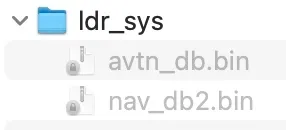
avtn_db.bin— aviation databasenav_db2.bin— navigation database
This card is loaded into the top slot of each display during the update, one at a time.
PFD database card (bottom slot — stays in PFD)
- Obstacles
- SafeTaxi
- Terrain
- Basemap
The PFD does not need Airport Directory or Electronic Charts. It will sync Airport Directory automatically from the MFD card on startup.
MFD database card (bottom slot — stays in MFD)
- Obstacles
- Airport Directory
- SafeTaxi
- Terrain
- Electronic Charts
- Basemap
The MFD card is the superset — it carries Airport Directory and Electronic Charts in addition to the shared databases.
Update procedure
The key principle: you update one display at a time by pulling circuit breakers to isolate the other display, then loading data from the nav data card via the top slot.
Step 1 — Prepare the cockpit
- Everything OFF — master switch, avionics, battery
- Insert the MFD database card into the MFD bottom slot
- Insert the PFD database card into the PFD bottom slot
- Remove the Engine Monitoring card from the MFD top slot and set it aside safely
- Insert the Nav Data card into the MFD top slot
Step 2 — Update the MFD
- Pull the 2 PFD circuit breakers to isolate the PFD (it must not power on)
- Turn BAT ON — only the MFD will boot
- Follow the on-screen prompts to load the navigation data
- Wait for the update to complete — do not interrupt
- Turn BAT OFF once complete
Step 3 — Update the PFD
- Push the PFD circuit breakers back in
- Pull the 2 MFD circuit breakers to isolate the MFD
- Move the Nav Data card from the MFD top slot to the PFD top slot
- Turn BAT ON — only the PFD will boot
- Follow the same on-screen prompts to load the navigation data
- Wait for the update to complete
Step 4 — Restore normal configuration
- Turn BAT OFF
- Push all circuit breakers back in
- Remove the Nav Data card from the PFD top slot
- Re-insert the Engine Monitoring card into the MFD top slot
- Leave the PFD and MFD database cards in their bottom slots — they stay permanently
- Power up normally and verify the navdata cycle dates on both displays
Common mistakes
- Mixing database cards — the PFD and MFD bottom cards are not interchangeable. The MFD card contains Electronic Charts data that the PFD doesn’t need
- Forgetting to pull circuit breakers — if both displays power on simultaneously during the update, the process can fail or load data to the wrong unit
- Leaving the Engine Monitoring card out — easy to forget after the update. No engine data on the MFD means no CHT/EGT monitoring in flight
- Wrong files on the nav card — the top-slot card should only contain the
ldr_sys/folder withavtn_db.binandnav_db2.bin. Do not put obstacle or terrain data on this card
Update frequency
Not all databases update at the same pace:
| Database | Update Cycle | Notes |
|---|---|---|
| NavData (Jeppesen) | 28 days | Standard AIRAC cycle — keep this current |
| Obstacles | 56 days | Every other AIRAC cycle |
| Basemap | ~1—2 years | Irregular releases by Garmin, minimal operational impact |
| Terrain | Rarely | Tied to major software updates, based on SRTM data |
NavData and Obstacles are the ones you need to stay on top of. Terrain and Basemap change so infrequently that many operators only update them when installing a software upgrade.
Procedure documented for Cirrus SR22T with Garmin Perspective (G1000-based). Always cross-reference with the Garmin Pilot’s Guide and your aircraft’s POH for your specific configuration.
Related articles
Flying the Cirrus SR22T Across Europe
Adventures and learnings from flying a Cirrus SR22T based at Schönhagen airfield near Berlin.
US West Coast Trip in a Cirrus SR22T G5
A flight report from a West Coast tour in a nearly new Cirrus SR22T G5 - from San Carlos to Las Vegas, Sedona, San Diego, Santa Monica, and over the Golden Gate Bridge at 1,000 ft.
Cirrus SR22TN Procedures
Complete operating procedures for the Cirrus SR22TN - speeds, takeoff, climb, LOP operations, traffic pattern, landing, IFR approaches, maneuvers, and emergencies.